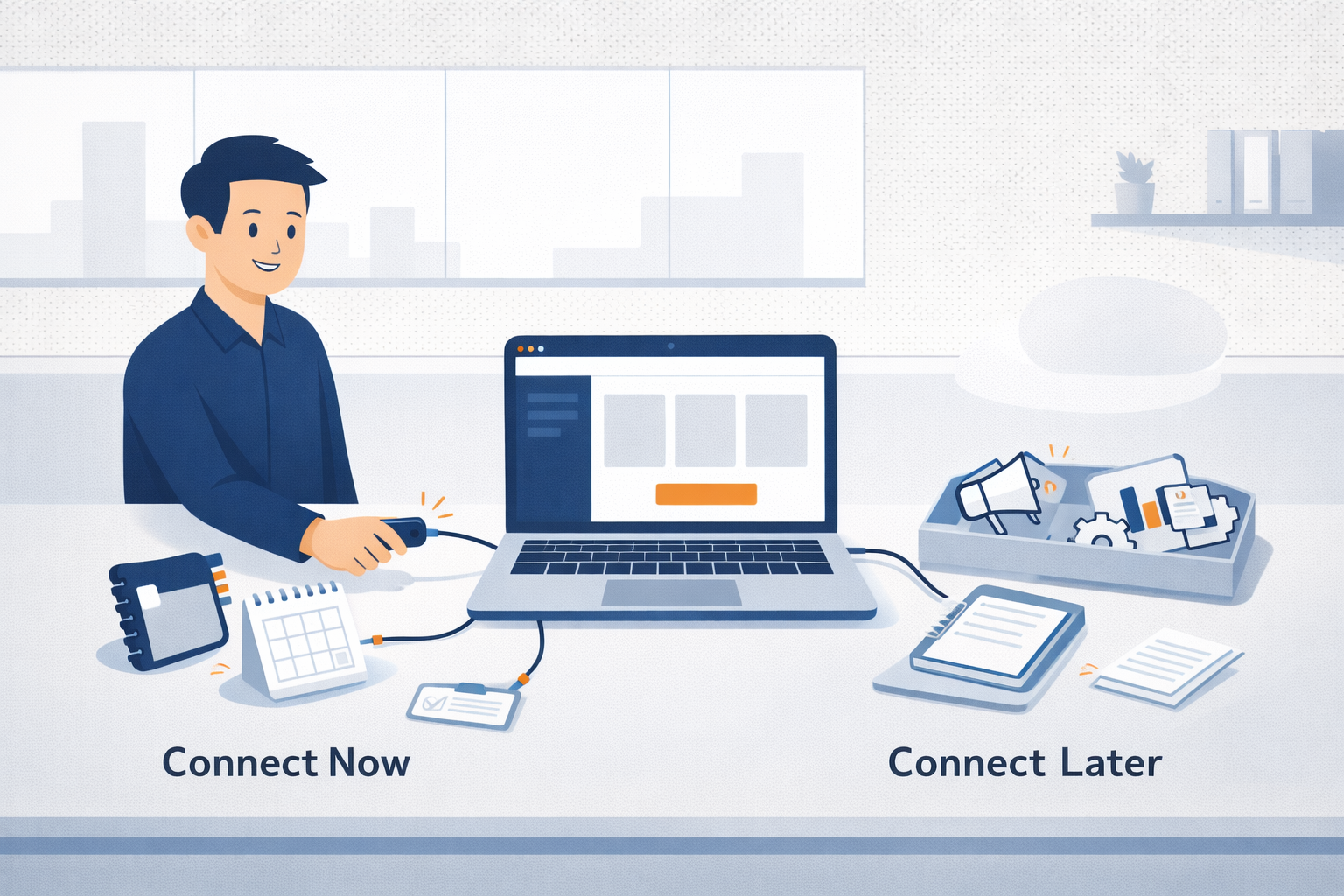
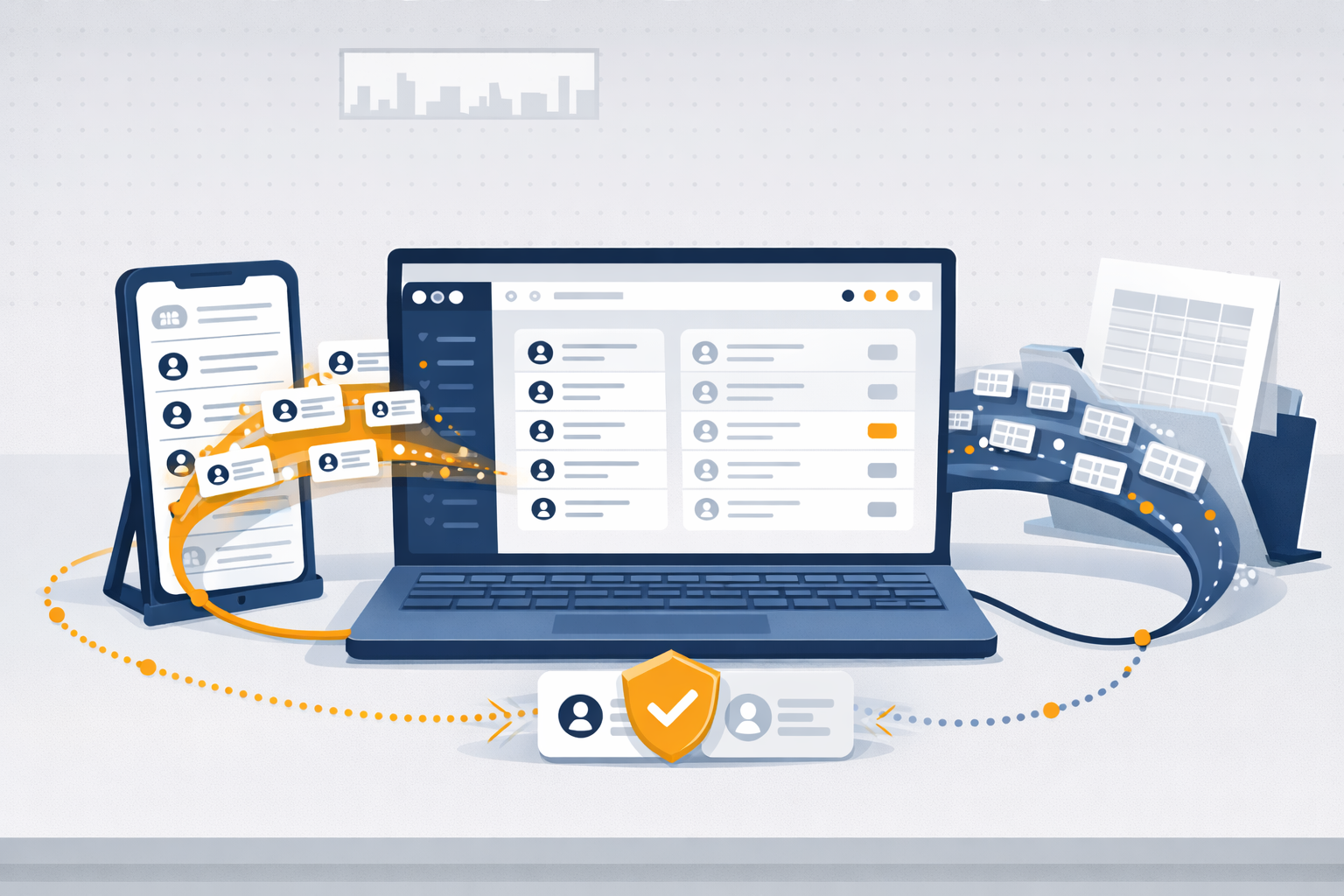
This guide explains how to import contacts into Segwik using the mobile app or the web, depending on how organized your data already is.
Importing on the Segwik mobile app is the fastest way to get started. This method syncs contacts directly from your phone.
Segwik pulls in names, phone numbers, and emails exactly as they exist on your device.
Web-based importing is designed for more structured contact lists. This is how you bring in data from spreadsheets, CRMs, or email platforms.
CSV importing gives you more control over how contacts are organized from the start.
Segwik checks for duplicate contacts during import.
You don’t need to worry about accidentally importing the same person multiple times.
You can try importing a small set of contacts now to see how it works.
Phone contact importing requires the Segwik mobile app.
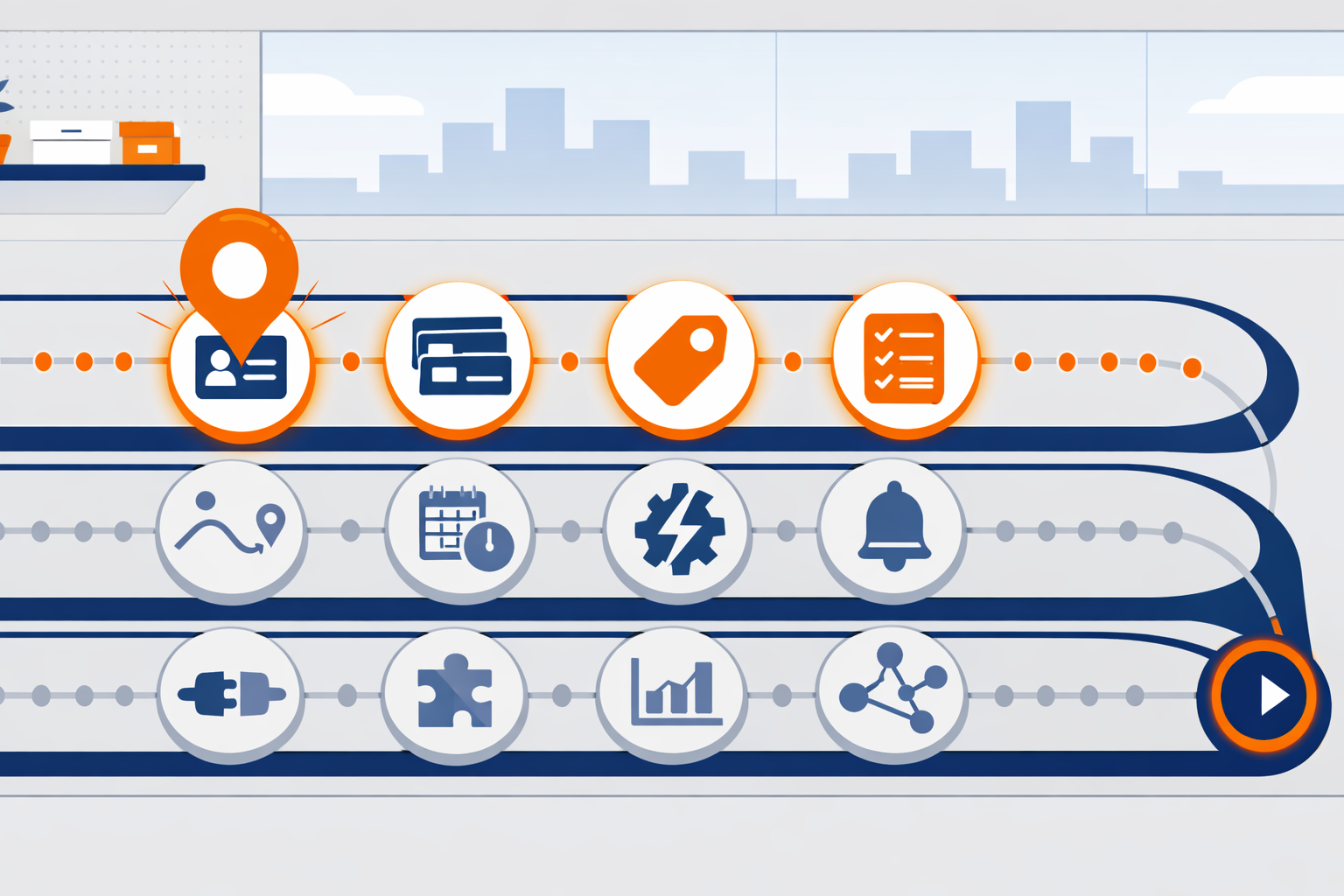
If you’re ever unsure what to do next, the Roadmap is your answer.

If you use Segwik consistently for one month, you stop relying on memory. You stop losing track of people. You stop wondering what to do next.
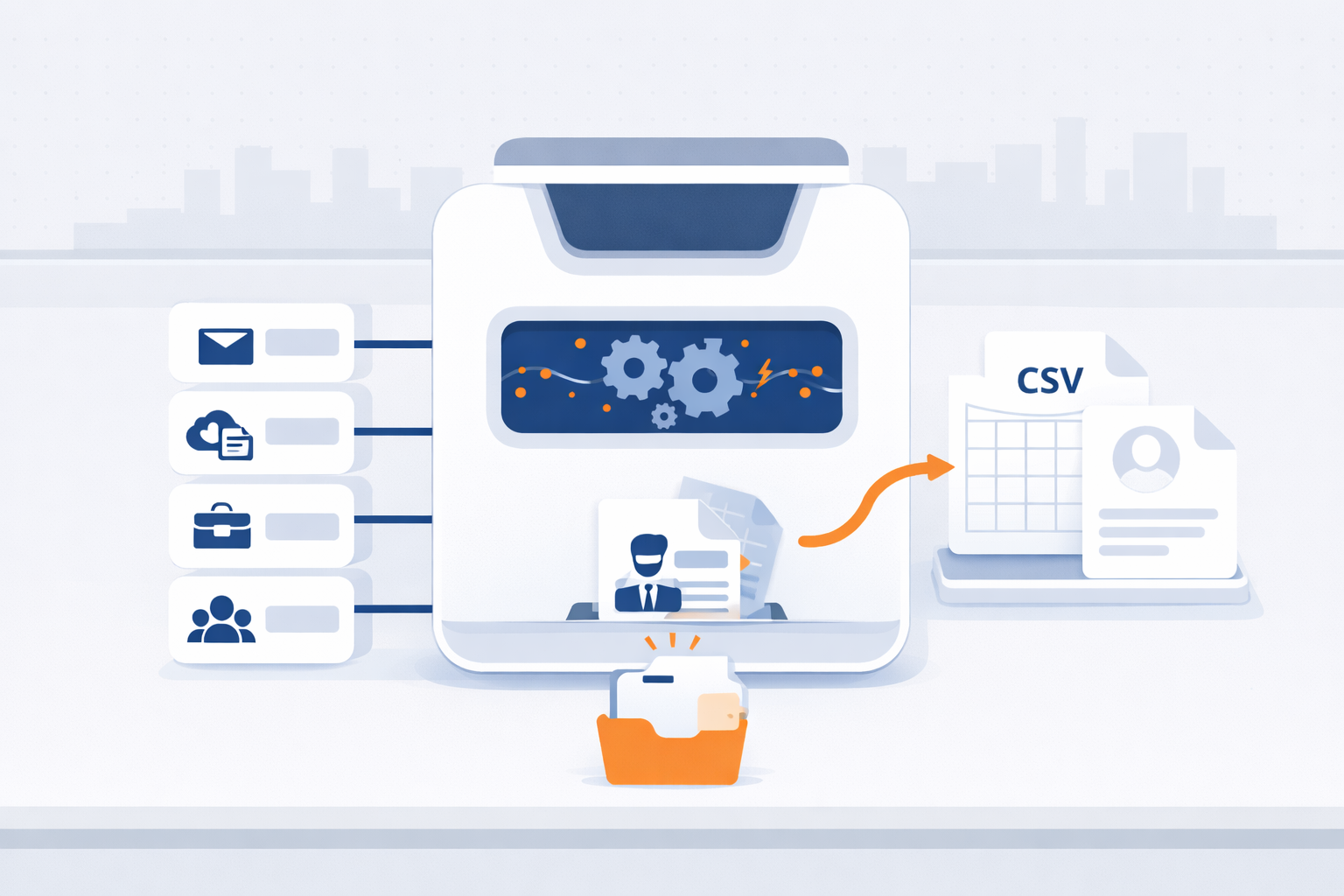
Export your contacts from Gmail, iCloud, Outlook, or Mailchimp in minutes—so you can bring them into Segwik quickly and stay organized.
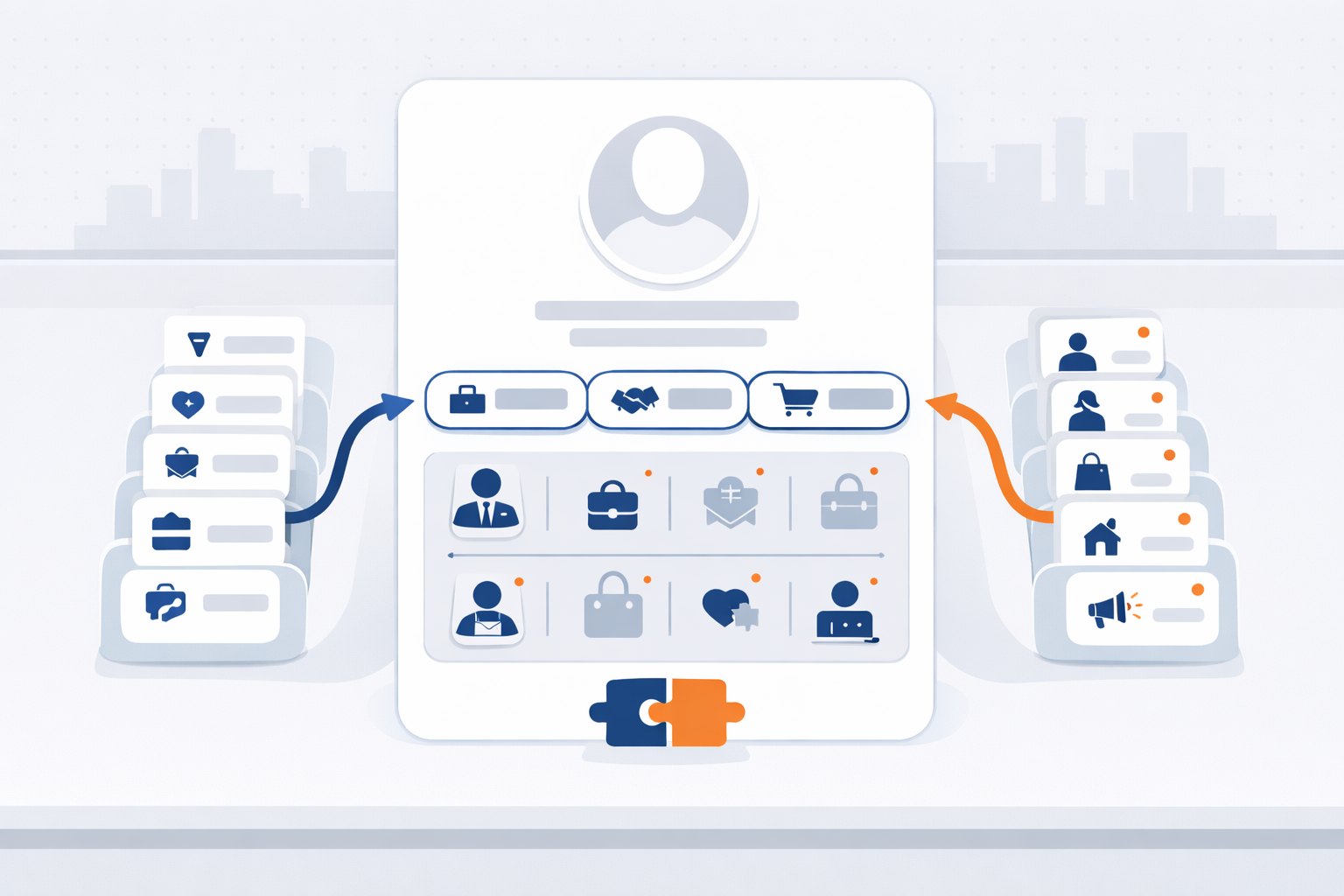
Contact Types and Personas help Segwik understand both your relationship to someone and who they are in your world.
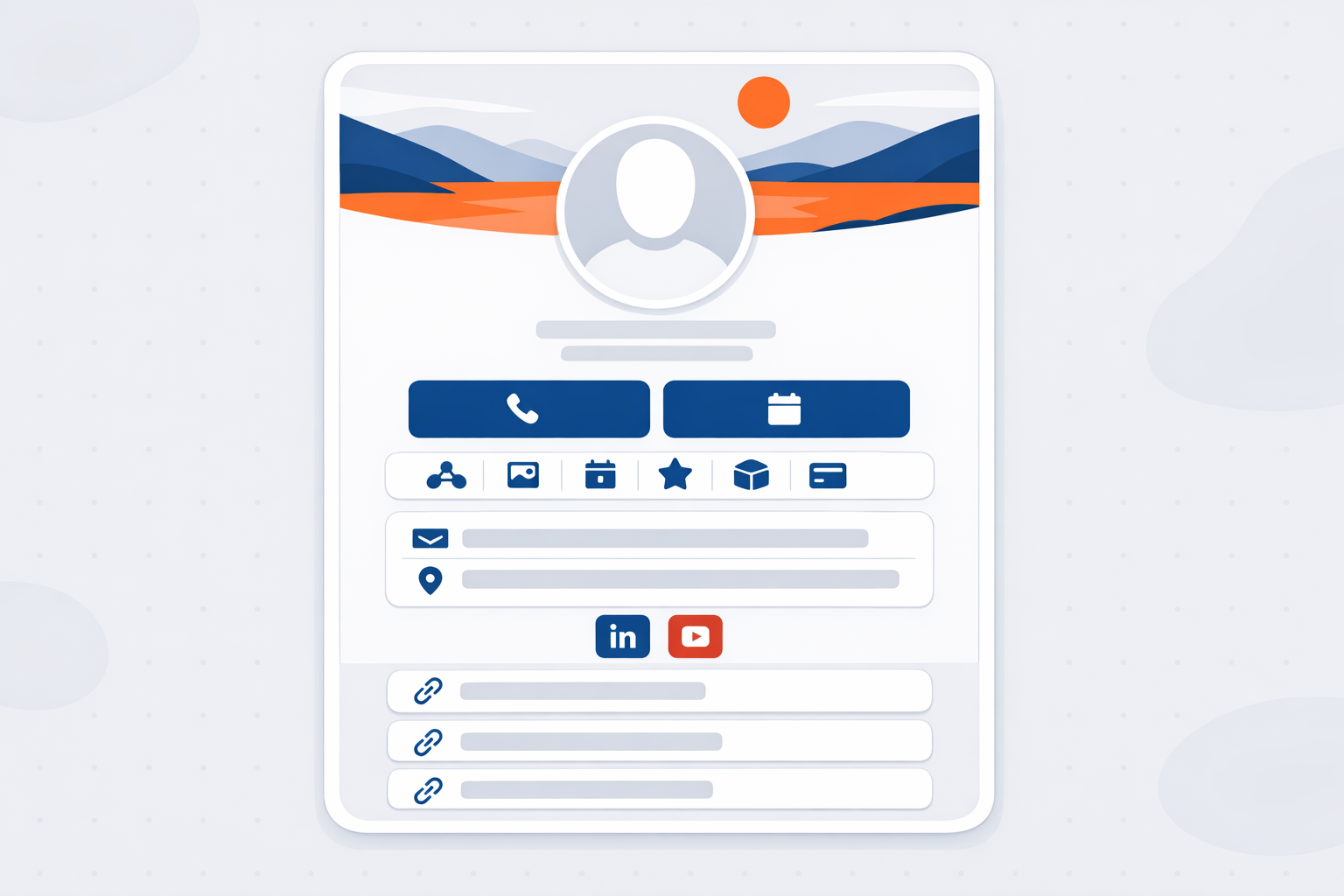
A great digital card makes it easy for people to save you, contact you, book time with you, and share you—without friction.
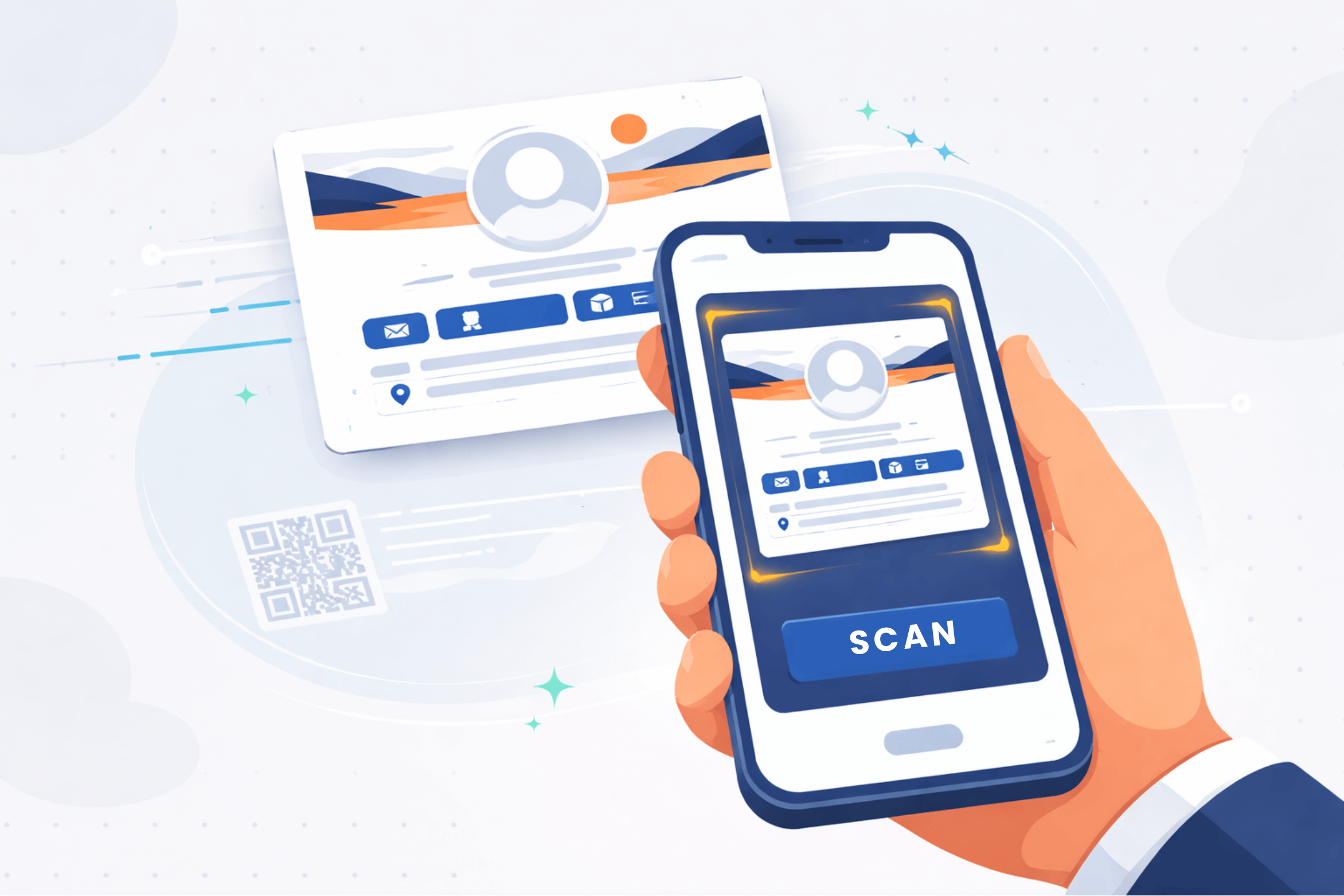
Clean data imports faster, maps easier, and creates fewer issues later.
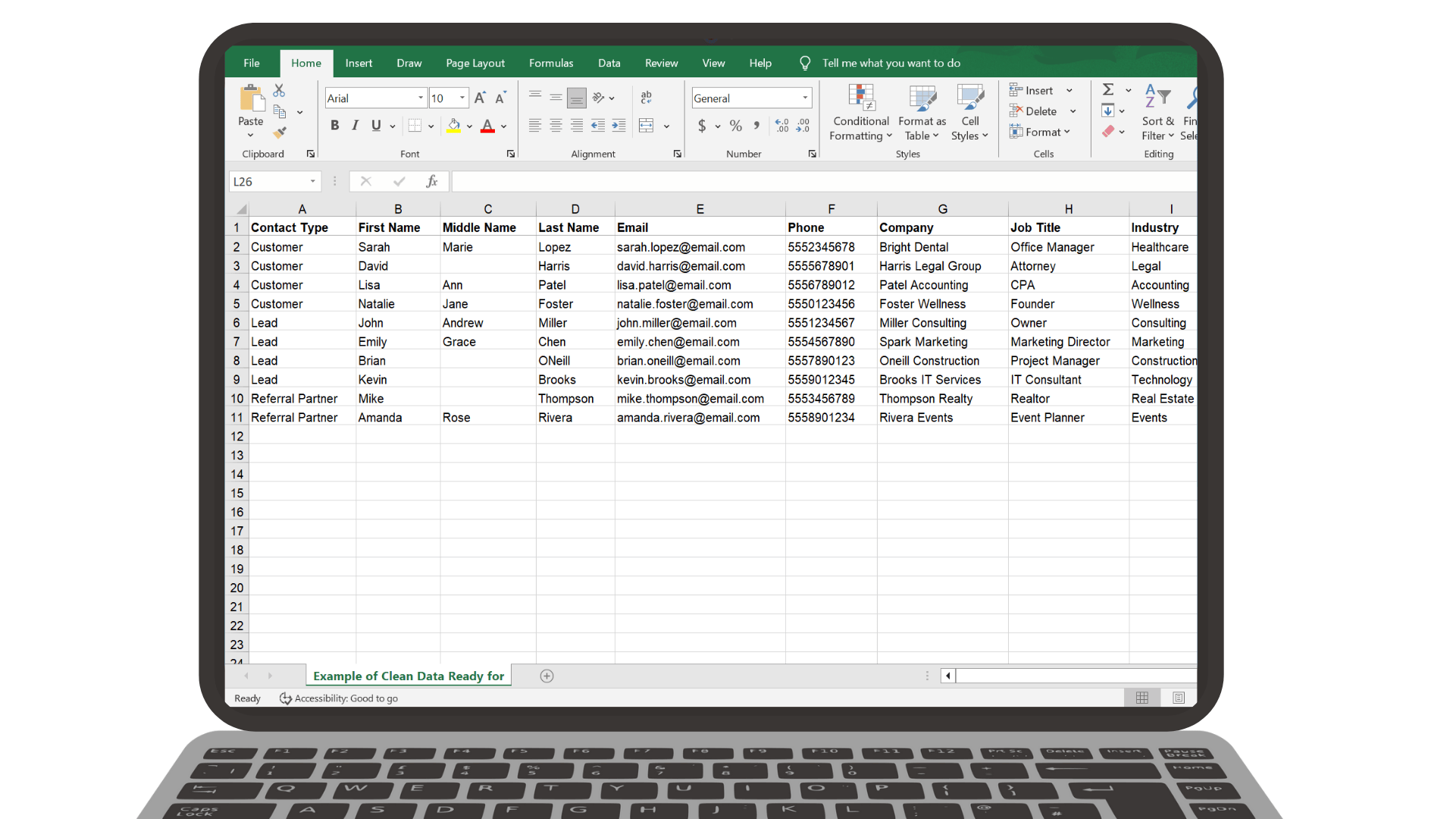
Clean data imports faster, maps easier, and creates fewer issues later.
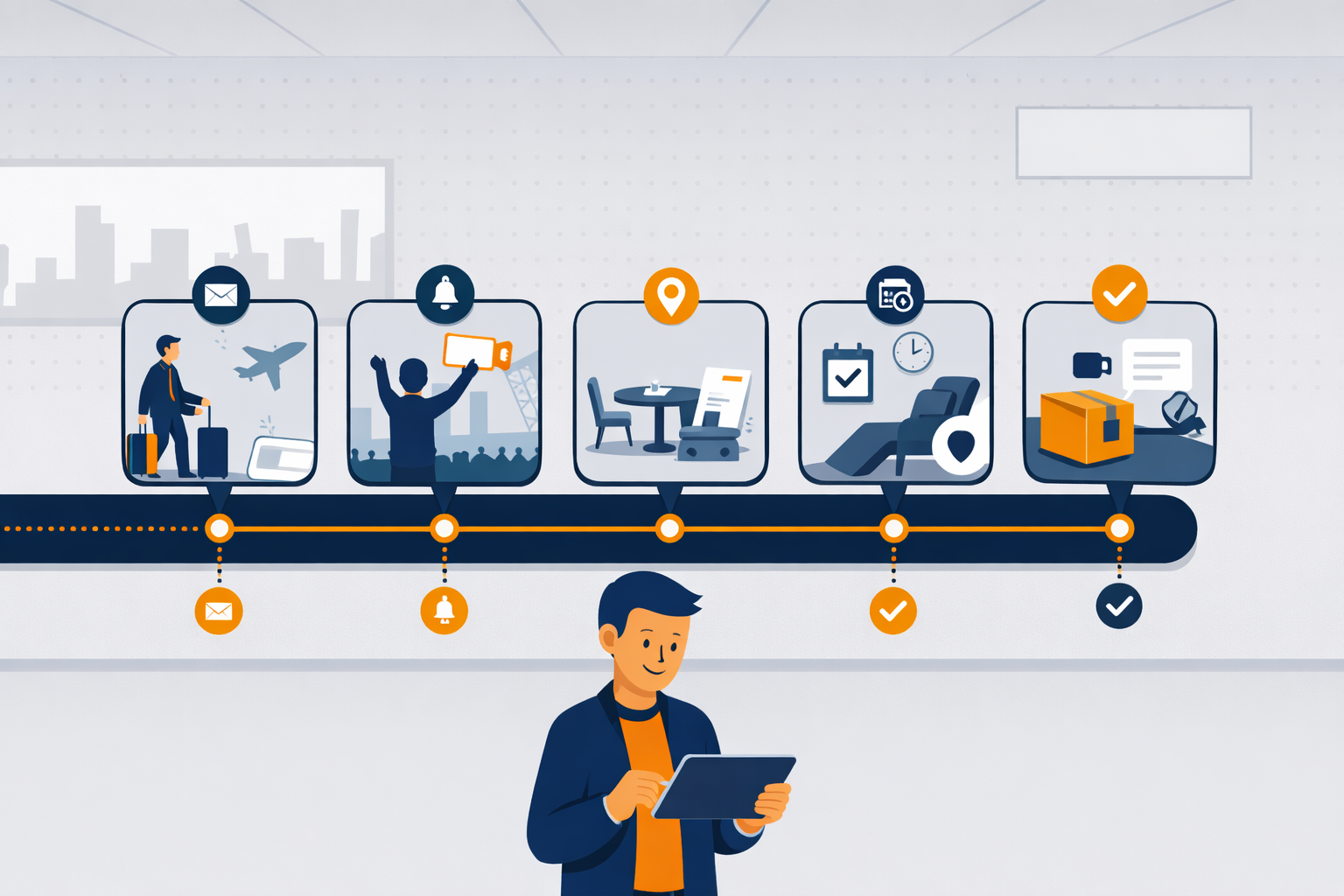
See how familiar experiences like airlines, restaurants, dentists, retail, and online ordering guide people step-by-step — with automation quietly keeping everything on track.

Automations handle the small stuff. Journeys guide the big picture.